Regula Document Reader
If you have any questions, feel free to contact us at support@regulaforensics.com
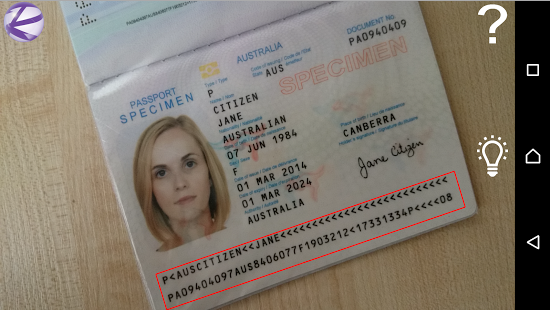
- How to build demo application
- How to use DocumentReader library
- How to add DocumentReader library to your project
- Troubleshooting license issues
- Additional information
How to build demo application
- Get trial license for demo application at licensing.regulaforensics.com (
regula.licensefile). - Clone current repository using command
git clone https://github.com/regulaforensics/RegulaDocumentReader-Android.git. - Download and install latest JDK.
- Download and install latest Android Studio.
- Download latest DocumentReader.aar and copy it to RegulaDocumentReader/DocumentReader folder.
- Copy file
regula.licensetoRegulaDocumentReader/DocumentReaderDemo/src/main/res/rawfolder. - Launch Android Studio and select
Open an existing Android Studio projectthen selectRegulaDocumentReaderproject in file browser. - Download additional files proposed by Android Studio to build project (build tools, for example).
- Build and run application on device.
How to use DocumentReader library
The very first step you should make is initialize DocumentReader (install license file):
try {
    InputStream licInput = getResources().openRawResource(R.raw.regula);
    ByteArrayOutputStream byteArrayOutputStream = new ByteArrayOutputStream();
    int i;
    try {
        i = licInput.read();
        while (i != -1)
        {
            byteArrayOutputStream.write(i);
            i = licInput.read();
        }
    } catch (IOException e) {
        e.printStackTrace();
    }
    byte[] license = byteArrayOutputStream.toByteArray();
    sIsInitialized = DocumentReader.Instance().Init(MainActivity.this, license);
    licInput.close();
    byteArrayOutputStream.close();
} catch (IOException e) {
    e.printStackTrace();
}
License file contains information about your application id and time terms. If Init() method returns false, you can see additional information in logcat.
When DocumentReader is initialized, all you need to do is to call only one function to process bitmap or video frame:
// Bitmap processing
Bitmap bmp = getBitmap(selectedImage);
int status = DocumentReader.Instance().processBitmap(bmp);
if(status == MRZDetectorErrorCode.MRZ_RECOGNIZED_CONFIDENTLY) {
    // MRZ recognized, fetch results
    TextField surnameTextField = DocumentReader.Instance().getTextFieldByType(eVisualFieldType.ft_Surname);
    String surname = surnameTextField.bufText;
    ...
} else{
    // MRZ not recognized
    ...
}

// Video frame processing (Camera.PreviewCallback interface, android.hardware.camera2 API)
private CameraPreview camPreview;
...
@override
public void onPreviewFrame(byte[] data, final Camera camera) {
    ...
    int status = DocumentReader.Instance().processVideoFrame(data, size.width, size.height, parameters.getPreviewFormat());
    if (status == MRZDetectorErrorCode.MRZ_RECOGNIZED_CONFIDENTLY) {
        // MRZ recognized, fetch results
        TextField surnameTextField = DocumentReader.Instance().getTextFieldByType(eVisualFieldType.ft_Surname);
        String surname = surnameTextField.bufText;
          ...
    }
    else {
        // MRZ not recognized
        ...
    }
}
You can also use CaptureActivity that does all camera work for you:
Intent intent = new Intent(MainActivity.this, CaptureActivity.class);
MainActivity.this.startActivityForResult(intent, DocumentReader.READER_REQUEST_CODE);
...
@Override
protected void onActivityResult(int requestCode, int resultCode, Intent data) {
    super.onActivityResult(requestCode, resultCode, data);
    if (resultCode == RESULT_OK && requestCode == DocumentReader.READER_REQUEST_CODE){
        // MRZ recognized, fetch results
        TextField surnameTextField = DocumentReader.Instance().getTextFieldByType(eVisualFieldType.ft_Surname);
        String surname = surnameTextField.bufText;
        ...
    }
}
Additional details of how to use CaptureActivity you can find in demo application code.
How to add DocumentReader library to your project
- Open your project in Android Studio.
- In
Filemenu selectNewsubmenu and thant selectNew Module.... - In appeared window select
Import .JAR/.AAR Package. - In field
File name:write path toDocumentReader.aarfile which you can find inRegulaDocumentReader/DocumentReaderfolder and pressFinishbutton. - In your project
build.gradlefile add dependency to DocumentReader library:
dependencies {
    compile project(':DocumentReader')
}
You also have to register license file as described in How to use DocumentReader library
Troubleshooting license issues
If you have issues with license verification when running the application, please verify that next is true:
- OS you are using is the same as in the license you generated (Android).
- Application ID is the same that you specified for license.
- Date and time on the device you are trying to run the application is correct and inside the license validity term.
- You are using the latest release of the SDK from Releases.
- You placed the license into the correct folder as described here How to build demo application (
RegulaDocumentReader/DocumentReaderDemo/src/main/res/raw).
Additional information
If you have any questions, feel free to contact us at support@regulaforensics.com